9 Gmail Tips to Help You Tackle a Crowded Inbox and Communicate More Effectively
No one wants to spend even more of their life reading and writing emails.
If you're the type of person who spends a lot of time in front of the screen, whether for school, work or your personal life, it's important to master at least a few time-saving email tricks, and Gmail has some of our favorites. They've got plenty of built-in features that facilitate better organization, faster navigation and easy composition, and the better you understand them, the less time you have to spend in your inbox. We have some suggestions on where to start so you can both tackle your crowded inbox and communicate more effectively—but keep in mind that these tips are all for the desktop version of Gmail, and may not apply to tablets or mobile versions.
Learn and Utilize Shortcuts
Gmail has a ton of super handy built-in shortcuts that you might not know anything about if you don't have them activated. Go to "Keyboard shortcuts" under your settings, turn them on and save your changes to make composing and navigating your emails a breeze. Some of our favorite simple and useful shortcuts are below:
c – Compose new email
d – Compose new email in a new tab
r – Reply
a – Reply all
f – Forward
s – Favorite message
# – Delete message
/ – Jump to search
! – Report spam
e – Archive the current email thread
m – Mute the current conversation
, – Move focus to toolbar
j – Jump to older conversation
k – Jump to newer conversation
p – Go to previous message in the open conversation
n – Go to the next message in the open conversation
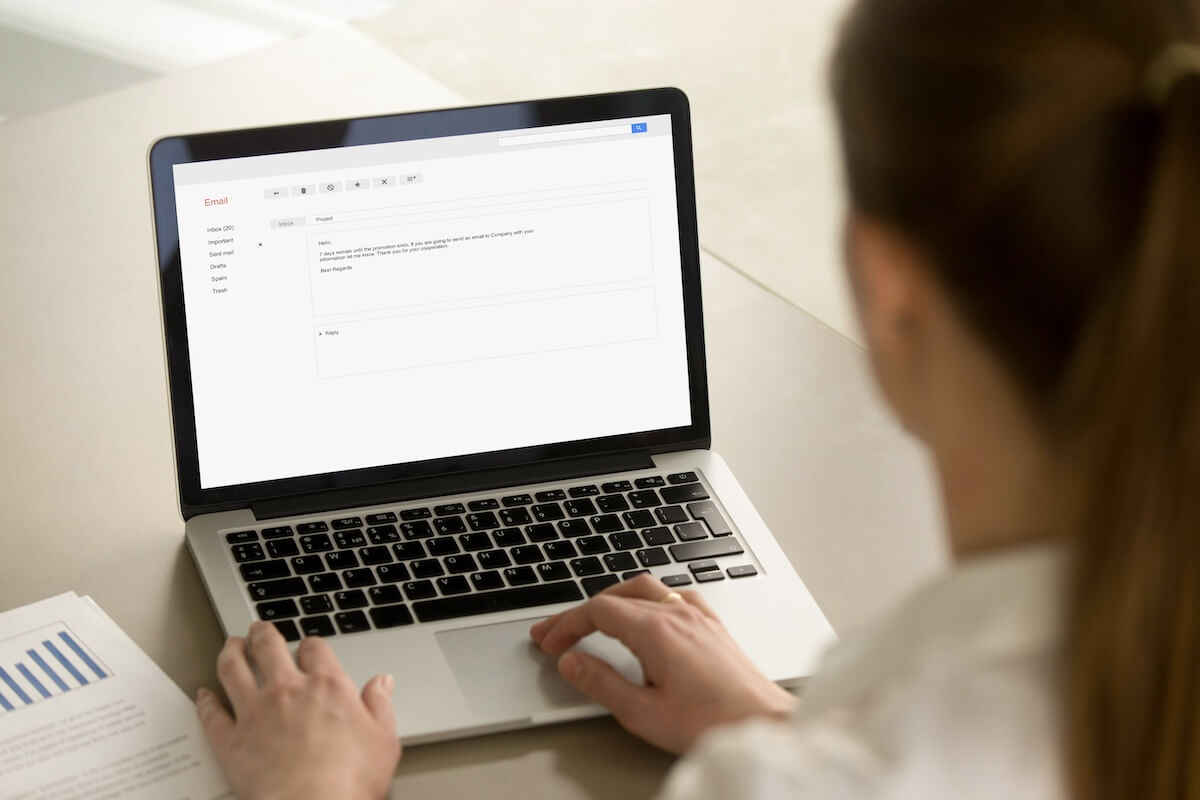
(via Shutterstock)
Make the Most of the Search Function
Finding the precise email thread or important message you're looking for can be a pain if you don't know how to make the most of Gmail's search function. Instead of just typing a keyword into the bar and hoping for the best, trying utilizing the search options (the toggle symbol to the right of the search bar) for more specific parameters, including who the messages are to and from, words are or aren't in the subject and/or body, file sizes, whether there are attachments and date ranges.
If you know the search operators, you can also type them in yourself. Some of the more useful ones are:
For messages from a specific address: from:(sample@email.com)
For messages to a specific address: to:(sample@email.com)
For messages containing text in the subject line: subject:(search parameter)
For messages with attachments: has:attachment
For messages in a specific date range: after:2025/2/5 before:2025/3/5
For messages in your inbox: in:inbox
For messages in the trash: in:trash
For messages in your spam folder: in:spam
For messages not containing a specific phrase: -(sample words)
Also read about: 7 Ways Social Media Might Be Making You Unhappy
Filter Your Messages
If you click the three vertical dots at the upper righthand corner of any Gmail message, you can select "Filter Messages Like This." This automatically applies your preferences to these messages, without even having to read them. For example, you can take any messages from a certain email address or with specific words in the subject line and automatically favorite them, delete them, mark them as important or give them a label. This can help you find your most important messages at a glance, and never have to look at spammy messages you just can't get rid of.
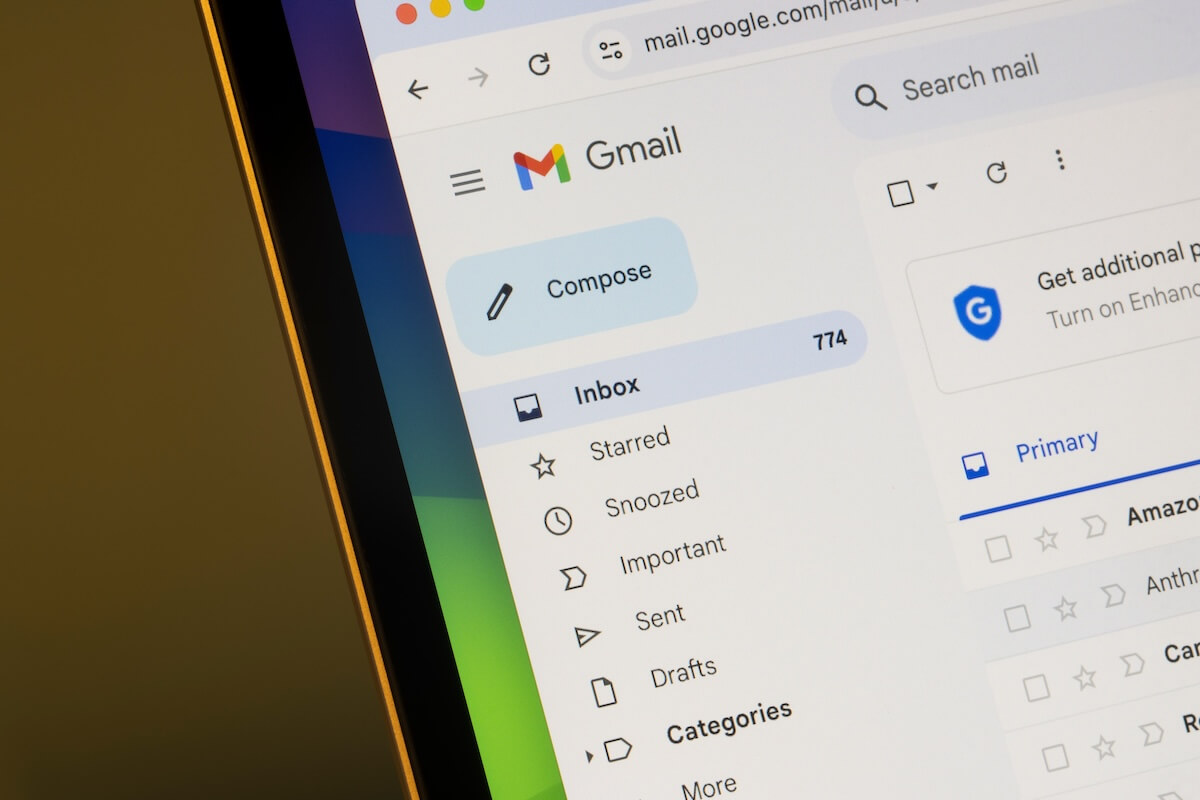
(via Shutterstock)
Utilize Labels
We mentioned labels above, and they're probably one of the most useful functions in Gmail for sorting different types of messages and categorizing them neatly, thus making them easier to find down the line. You can go to the Label menu by clicking the label symbol below the search bar or pressing shift + L. From there, you can create brand new labels for your messages, or add new ones to existing labels. You can also color-code them for easy reference. How you get them organized for your use is up to you.
Turn on Undo Send
We can't be the only ones who sometimes catch typos after we've already hit "send" on an email, or who accidentally send off messages mid-composition. Undo Send is here to save the day. Just go to Settings and turn on Undo Send, select your cancellation window of 5, 10, 20 or 30 seconds before saving. Yes, every one of those emails will by delayed by that many seconds, but we firmly believe it's worth the chance to change our minds when we need it.
Scheduling Messages
Sometimes, it's not practical to send a message right away, whether you're not ready to dedicate lots of time to a project just yet or someone asks you to remind them about something on a specific day. You may even want to delay a message by just a few minutes so you don't seem over-eager. The "Schedule Send" feature is super practical for all of these circumstances.
It appears as a downward arrow to the right of your regular blue "Send" button. Click it and then click "Schedule Send" to pop out a menu with pre-set suggestions for sending times. We almost always use the Pick date & time option, which allows you to send any time on any date, as long as it's least a few minutes into the future.
Utilize Templates
If you find yourself writing similar types of messages over and over or copying and pasting the same text into your emails, it's time to start using Gmail's templates. First, you have to turn them on by going to Settings, and then Advanced before enabling Templates and saving your changes. Next, it's time to start coming up with your templates.
Creating templates is just like composing a regular email. Start by writing a good name for your template in the subject line and then writing your template message. Once it's ready, click the three vertical dots at the far right of the bar at the bottom of the screen before highlighting Templates and then Save Draft as Template. Your template will be ready to use.
From now on, anytime you want to use this templatized message, go to the same vertical dots menu to access Templates, then click the desired option under Insert Template. Repeat these steps to create as many templates as you need. It's a massive time saver, and you can use symbols or capitalized text that stands our for any messages that might require swapping out names or other specific info.
Also read about: What Your Email Sign-Off Says About You
Snooze Messages for Later
For messages that are important, but not super timely, the Snooze feature can be a great tool to take extra stress off your plate. Instead of letting the message hang out at the top of your inbox and take up your mental energy, try Snoozing it instead by hovering over the message from your inbox, clicking the clock symbol at the far right and picking a time to snooze it until. It'll temporarily disappear from your crowded inbox and appear again at the more convenient time you chose, whether that's later in the day, tomorrow or even next week.

(via Unsplash)
Don't Forget to Hit Unsubscribe
This one isn't specific to Gmail, as we urge all email users to unsubscribe from unwanted email lists, newsletters and sales emails whenever they get the chance. It might seem like a hassle, but it really only takes a few seconds to find the Unsubscribe button (usually either at the top of the email next to the sender's address or at the bottom header) and never have to deal with their pesky and unwelcome messages again, saving lots of your time and energy in the long run. If it's not something that brings you joy or something necessary, don't waste your time on it.
For even more on the importance of email, click HERE for the best tips on writing emails effectively.